Pasing Grades
  • Start Selling
  • Blog
  • Contact
  • 0

    Your cart is empty!

English

  • English
  • Spanish
  • Arabic
Create Account Sign In
  • Library
    • New Prep Guides
    • Featured Prep Guides
    • Free Exam Prep Guides
    • Best sellers
  • General
  • Nursing
    • Research Paper
    • Case Study
    • Discussion Post
    • Assignment
    • Exam
    • Practice Questions and Answers
    • Test Bank
    • solutions manual
  • Accounting
    • Case Study
    • Thesis
    • Study Guide
    • Summary
    • Research Paper
    • test bank
  • English
    • Creative Writing
    • Research Paper
    • Summary
    • Rhetorics
    • Literature
    • Journal
    • Exam
    • Grammar
    • Discussion Post
    • Essay
  • Psychology
    • Hesi
    • Presentation
    • Essay
    • Summary
    • Study Guide
    • Essay
    • Solution Manual
    • Final Exam Review
    • Class Notes
    • test bank
  • Business
    • Lecture Notes
    • Solution Manual
    • Presentation
    • Business Plan
    • Class Notes
    • Experiment
    • Summary
    • Practice Questions
    • Study Guide
    • Case Study
    • test bank
    • Exam
  • More
    • Computer Science
    • Economics
    • Statistics
    • Engineering
    • Biology
    • Religious Studies
    • Physics
    • Chemistry
    • Mathematics
    • History
    • Sociology
    • Science
    • Philosophy
    • Law
  • Pages
    • About Us
    • Selling Tips
    • Delivery Policy
    • Faq
    • Privacy Policy
  • Flash Sale
  • Home
  • Wall Street Prep, Excel Crash Course Best Study Guide 2026 (Questions and Answers)

Wall Street Prep, Excel Crash Course Best Study Guide 2026 (Questions and Answers)

Preview page 1 Preview page 2 Preview page 3
Add To Favorites

Share this item Share this item

  • Item Details
  • Comments (0)
  • Reviews (0)
  • Contact Seller

(4) Hit Alt+A+J to unhide the columns (5) Hit Shift+Alt+LeftArrow (Option+Shift+LeftArrow) to remove the group 103. Grouping & Hiding Rows: (1) Hit Shift+Spacebar to select the desired row (2) Hit Shift+Alt+RightArrow (Option+Shift+RightArrow) to create the group (3) Hit Alt+A+H to hide the columns (4) Hit Alt+A+J to unhide the columns (5) Hit Shift+Alt+LeftArrow (Option+Shift+LeftArrow) to remove the group 104. Group - Don't Hide: You can hide data by hitting Alt+H+O+U+R for rows and Atl+H+O+U+C for columns Don't ever use this method because there are no indications as to the data's hidden location - stick to grouping 105. Grouping Worksheets: Helpful if you would like to format data in the same manner or enter the same data across multiple sheets By grouping multiple worksheets, any data and formatting that you would perform in one of the grouped worksheets would automatically be reflected in all of them Hold down Ctrl+Shift and press Page+Up/Down to reach the worksheets you would like to group (Shift+Click on the desired worksheets) All of the grouped worksheets are highlighted and the file name on top of the Excel screen should show [Group] are it To ungroup, press Ctrl+PageDown 106. Auditing Cells: Good: (Fn+)F2 -- go to a desired cell and hit the F2 key Excel will highlight (in different colors) all the cell components of an existing formula present in that cell Better: Ctrl+[ and Ctrl+] -- hitting Ctrl [ on a cell will highlight the precedent cell(s) Keep hitting Ctrl [ and it will take you to the next precedent Hitting Ctrl ] jon a cell will do the same thing for dependent cells Best: Excel Auditing Functions with Alt+M+P for precedents and Alt+M+D (Functions > Trace Precedents or Functions > Trace Dependents) Remove arrows with Alt+M+A+A Allows you to navigate to connected worksheets -- hit (Fn+)F5+Enter to go back to original cell 107. Center Across Selection: Highlight the region you want to center across Go to Formatting with Ctrl+1 (Cmnd+1) Go to Alignment Click Center Across Selection in Horizontal Alignment 9 / 27 108. Go To Special: Useful to quickly format constants vs. formulas (1) Highlight the relevant region (2) Hit Fn+F5 for Go To menu (3) Hit Alt+S for Special (4) Hit Constants and Uncheck Text, Logicals, and Errors (5) Hit Enter to select all constants (6) Use Ctrl+1 (Cmnd+1) to add special formatting 109. Distinguishing Constants: Constants are usually distinguished from formulas, such as by blue text vs. black text 110. Identifying Where Blanks Are: (1) Highlight the relevant region (2) Use Go To Special and select blanks (3) Hit Enter 111. Identifying Where Comments Are: (1) Highlight the relevant region (2) Use Go To Special and select comments (3) Hit Enter 112. Bottom Bar Customization: Right click on the bottom bar to change what you see from your selection (ex. Average, Count, Max, Sum, etc.) 113. Conditional Formatting: Allows you to create your own conditional formats or use a preset from Excel Alt+O+D or Home > Conditional Formatting > New Rule / Alt+H+L > New Rule for customs Alt+H+L or Home > Conditional Formatting > Highlight Cells Rules for presets 114. Identify which numbers in a column are above some number: (1) Highlight the relevant range (2) Hit Alt+O+D (3) Select "Use a formula to determine which cells to format" (4) Write "=" and select the first number in the column (5) Anchor the column (6) Write ">" and some number or cell that is your reference (7) Press Enter Ex. "= $C3>500" 115. And Functions: =and([first statement],[second statement) 116. Dynamic Headers & Text: Name: ="Income Statement for "&[Cell] Date: ="Share price as of "&TEXT([Cell], "mm/dd/yy") 117. Custom Formatting: (1) Type the number (2) Go to format tab (3) Go to "Custom" (4) Type in your custom format as [positive numbers];[negative numbers];[zero];[text] 10 / 27 Multiple: 0.0x_);(0.0x);@_) 1 = True/0 = False: "True";"Invalid";"False" n "Years": 0 "years" 118. Insert Line Breaks: Alt+Enter (Option+Enter) 119. Custom Format: Aligning Decimal Points: Add "_)" after and "_(" before the positive numbers and zero formatting Ex. _(0.0_);(0.0) 120. Custom Format: Adding a Comma Separator: Add "#,##" before the zeros Ex. _(#,##0.0_);(#,##0.0) 121. Custom Format: Aligning Non-Multiple Numbers with a Multiple: Add "x_" after the end _ for positive numbers and after the closing parenthesis for negative numbers Ex. _(#,##0.0_x_);(#,##0.0)_x 122. Custom Format: Negative number in parenthesis, aligned with positive number format, "Balance" when result is 0: #,##0.00_);(#,##0.00);"Balance" 123. Custom Format: Negative number in parenthesis, aligned with positive number format: #,##0.00_);(#,##0.00) 124. Custom Format: Multiple "x" format. Negative numbers in parenthesis, aligned with positive number format: _(#,###0.0x_);(##,##0.0x) 125. Custom Format: Negative number in parenthesis, aligned with positive number format and multiple "x" format: _(#,###0.0_x_);(##,##0.0)_x 126. Custom Format: L + [] Basis Points: L + 0 "bps" 127. Custom Format: Changing the Color of Negative Numbers to Red: Add [red] at the beginning of the negative numbers format Ex. _(#,##0.0_);[Red](#,##0.0) 128. Most Common Excel Errors: #DIV/0! Divided by zero #REF! Referencing a previously deleted cell #NUM! Number not valid #NAME? Text not valid (ex. incorrect function name) #VALUE! Incorrect arguments (ex. Using text as a number) ####### Column not wide enough 129. Find and Replace: Ctrl+F Write what you want to find Click Replace Write what you want to replace Use Options to restrict where you're searching, match the case, etc. Note: You can replace references in formulas as well by finding "[cell name]" and replacing with "[new cell name]"; Ex. Find "j7" and replace with "b2" 11 / 27 130. Preparing a Page for Printing: (1) Go to Page Layout > Page Setup (2) Change to Fit to 1 pages wide by [however many you want] pages tall or change from landscape to portrait (3) Change the margins and center on page horizontally and vertically in the Margins tab (4) Add custom headers and footers in the Header/Footer tab (page numbers, date, timestamp, file name, etc.) (5) Limit the print area in the Sheet tab, or add rows to repeat at the top of each page 131. What are all the ways to trace precedent cells?: Ctrl+[ Alt+M+P Alt+T+U+T 132. Create a Dropdown Menu Command: Alt+D+L 133. Change Text Color: Alt+H+F+C 134. Change the Cell to a Number Format: Ctrl+Shift+1 135. Functions: Pre-built combinations of operations in Excel that facilitate spreadsheet analysis 136. Structure of Functions: Every function starts with an "=" sign, then the function name, and then the cell range (bound with parentheses) All functions follow the same syntax:=functionname(argument1,argument2,...,argumentx) Within the parentheses, functions can have 0, 1, or many arguments, separated by commas 137. Now Function: =NOW() Spits out the current time and date 138. SUM Function: In the SUM function =SUM(A1:A10), there is only one argument, which is telling Excel the specific cell range that needs to be summed up 139. SUM Function Autosum Command: Alt+= (Cmnd+Shift+T) 140. Average Function: =Average([number 1],...,[number x]) Gives an average of the range 141. Logical Functions: IF: Returns one value if a condition you specify evaluates to TRUE and another value if it evaluates to FALSE Use IF to conduct conditional tests on values and formulas All IF statements follow the same structure =IF(x, y, z), where... (see picture) Text output is designated by quotation marks around the outputs 142. Greater Than or Equal to Functions: 

Contact the Seller

Please Sign In to contact this seller.


  • 👎  Report Copyright Violation

Frequently Asked Questions

What Do I Get When I Buy This Study Material?

+

When you buy a study material on Passing Grades, an instant download link will be sent directly to your email, giving you access to the file anytime after payment is completed.

Is Passing Grades a Trusted Platform?

+

Yes, Passing Grades is a reputable students’ marketplace with a secure payment system and reliable customer support. You can trust us to ensure a safe and seamless transaction experience.

Will I Be Stuck with a Subscription?

+

No, all purchases on Passing Grades are one-time transactions. You only pay for the notes you choose to buy, with no subscriptions or hidden fees attached.

Who Am I Buying These Study Materials From?

+

Passing Grades is a marketplace, which means you are purchasing the document from an individual vendor, not directly from us. We facilitate the payment and delivery process between you and the vendor.

Does Passing Grades Offer Free Study Materials?

+

Yes, sellers on Passing Grades have uploaded numerous free test banks, exams, practice questions, and class notes that can be downloaded at no cost.

Pasinggrades - Quality Study Materials

USD 7

    • Quality checked by Pasing Grades
    • 100% satisfaction guarantee
    • Seller: Namwaki
Buy PDF $7

Seller Information

Namwaki

Member since April 2021

  • icon
  • icon
  • icon
View Profile
  • total sales

    0
  • Favourites

    0
  • Comments

    0
    ( 0 Ratings )

Item Information

  • Uploaded

    14 October 2023

  • Updated

    05 January 2026

  • Category

    No category

  • Item Type

    exam

  • Tags

    Wall Street Prep wall street study material

Related Exam Prep Guides by Namwaki

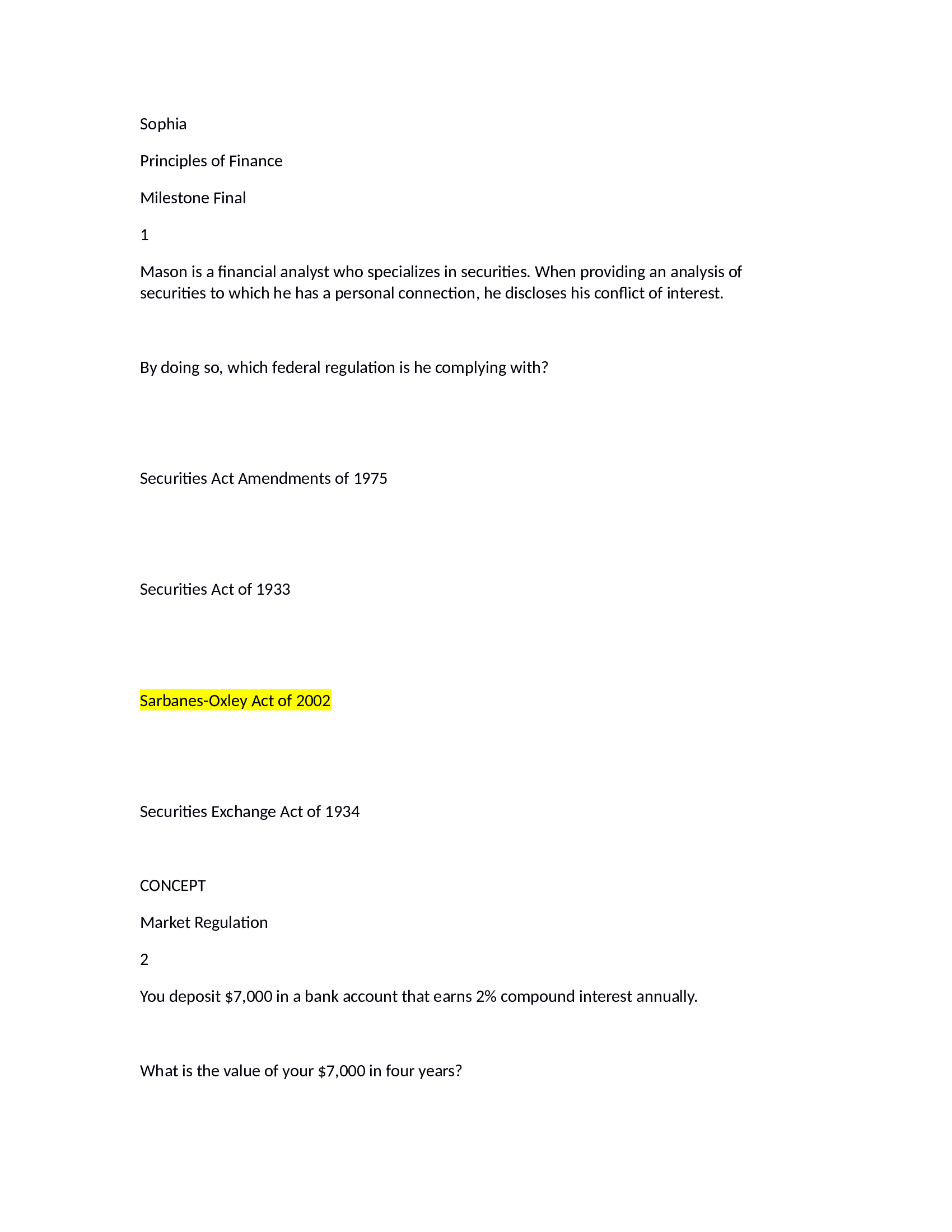
Sophia Finance Milestone Final_Complete Questions and Answers 2021.
View Document

Sophia Finance Miles...

  • Namwaki

    Namwaki

  • exam

Sophia Finance Milestone Final_Complete Questions and Answers 2021...

7 USD

0

0

Medical Parasitology 7th Edition Leventhal Test Bank
View Document

Medical Parasitology...

  • Namwaki

    Namwaki

  • exam

Medical Parasitology 7th Edition Leventhal Test Bank...

7 USD

0

0

TEST- BANK FOR WONGS NURSING CARE OF INFANTS AND CHILDREN 11TH EDITION HOCKENBERRY
View Document

TEST- BANK FOR WONGS...

  • Namwaki

    Namwaki

  • exam

TEST- BANK FOR WONGS NURSING CARE OF INFANTS AND CHILDREN 11TH EDITION HOCKENBERRY – Download PDF...

7 USD

0

0

Purchase

Download link will be sent to this email immediately after purchase.

IMPORTANT LINKS

  • How To Upload Class Notes
  • Selling Tips
  • Passing Grades's Study Materials
  • Scholarships for International Students 2025

POPULAR CATEGORIES

  • Law
  • Accounting
  • English
  • Psychology
  • Business
  • Nursing
  • Computer Science
  • General

View Document

  • Blog
  • Contact
  • Delivery Policy
  • Latest Scholarships Around the World
  • How to Pass Bar Exams: Passing Grades’ Strategies
  • How to Study and Pass the CPA Exam
  • All Test Banks
  • Faq
  • Copyright Claims
  • Privacy Policy
  • Terms of Use

KNOWLEDGE BASE

  • How to Write A+ Grade Good Research Paper
  • How to Manage Stress During Exam Period
  • Best Time to Study
  • How to Pass NCLEX-RN Exam
  • How To Effectively Utilize Test Banks
  • Popular Shadow Health Exam Assessments
  • Popular HESI Case Studies
  • How to Prepare for a Nursing Career
  • The Importance Of Summaries in Exam Revisvion

© 2026 Pasing Grades. All rights reserved.